
Blur the background behind a modal with backdrop-filter
When you bring up a modal, blurring the background behind it improves the modal’s readability. With the backdrop-filter CSS property, you can do this easily.
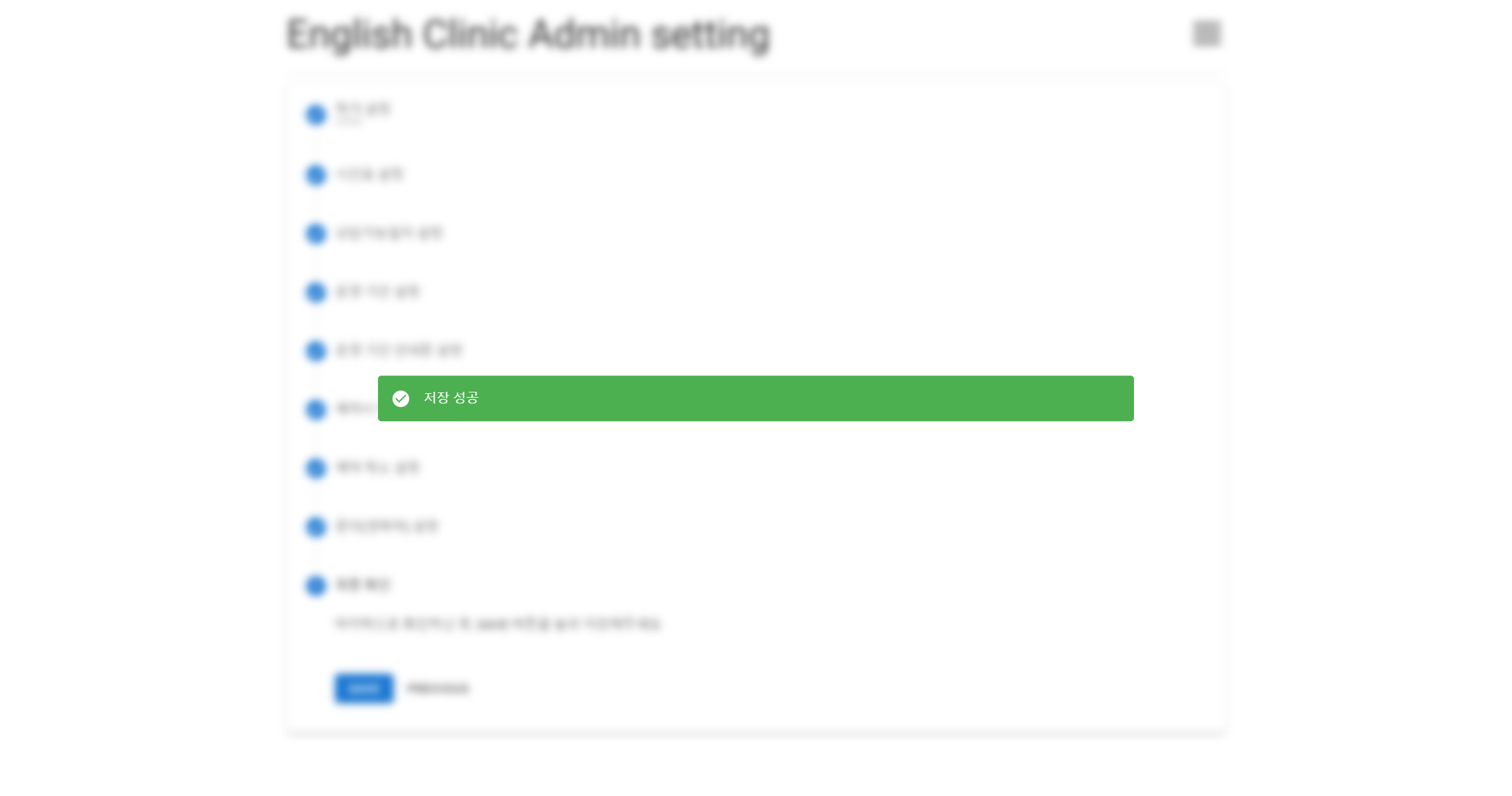
First, here’s the full code.
<html>
  <body>
    <div>body content</div>
    <div class="modalBackground">
      <div class="modal">modal</div>
    </div>
  <body>
  <style>
    .modalBackground {
      position: absolute;
      top: 0;
      left: 0;
      width: 100%;
      height: 100%;
      backdrop-filter: blur(5px);
    }
    .modal {
      width: 50%;
      position: absolute;
      top: 50%;
      left: 50%;
      transform: translate(-50%, -50%) scale(1);
    }
  </style>
</html>
Now let’s go through it piece by piece.
<div>body content</div> is the div that will be covered by the modalBackground class.
The modal class is the modal we want to display on screen. With transform: translate(-50%, -50%) scale(1);, we placed it neatly in the center of the screen.
The modalBackground class covers the entire screen. In the code above, we blurred the covered screen with backdrop-filter: blur(5px);.
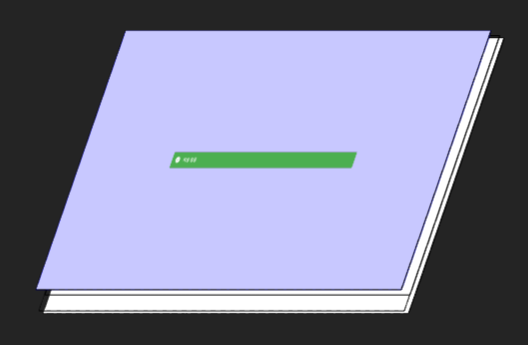
It’s easy to understand if you look at the layout tab in Chrome developer tools. The blue modalBackground is covering all of the body content behind it!

Leave a comment