
Optimizing video in mobile device webviews - Hardware overlay
Mobile devices are low-powered. Mobile web browsers are low-powered. Webviews are even more low-powered. So for a developer, the performance of an application that will run inside a webview is an extremely important issue. But performance problems are never easy. They are hard. Webviews have a fundamental limitation. Mobile devices restrict webview performance at the OS level. It’s not simply because the engine itself is slow. It’s not simply because of device performance either. It’s because, for a webview, stability takes priority over performance. There is no official documentation on this point. It’s just what I’ve come to feel over the past dozen-plus years of development.
Putting video on a webview is even more of a headache. You want to load the heavy task of video playback onto a webview that’s already painfully slow? As of 2025, this was effectively impossible until just a few years ago. Downloading a huge video file quickly while the device decodes it and outputs it in sync with the screen’s vsync, all while responding smoothly to user gestures and running this and that feature, is not an easy task even for today’s mobile devices in 2025. Back in the early-to-mid 2010s, when countless mobile apps were being released, there were as many types of apps as there were apps flooding into the app store. Have you ever wondered why there were no apps with a TikTok-style UX among them? If someone had had the idea to build an app like TikTok back then, wouldn’t they have made a fortune? In my opinion, it was simply impossible. With the device performance of that era, playing video in an infinite feed was impossible. In a word, video is heavy.
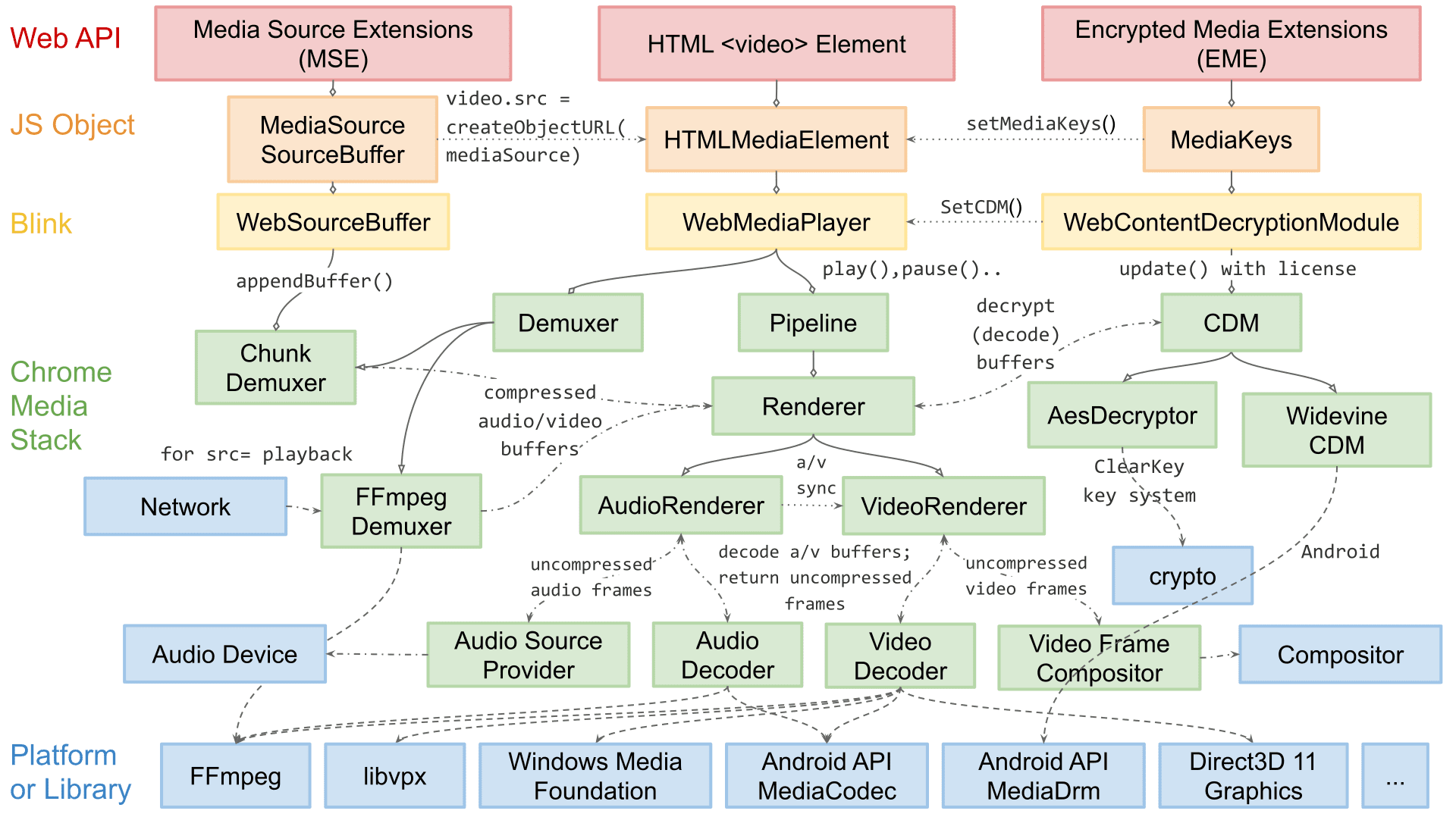
But that doesn’t mean there’s no solution for webviews to handle video at this point in time. The answer is to have the mobile device’s hardware shoot the video directly onto the screen, which is exactly what hardware overlay is. In this approach, the video is placed directly onto the display engine (Hardware Composer, HWC for short, on Android; Core Animation + display controller on iOS) and output. Since most of the intermediate work, such as copying the video into memory, is skipped, the overhead is greatly reduced, and as a result, device resource consumption drops significantly. This frees up resources to be allocated more generously to the JavaScript main thread, which of course also leaves room to do other work, such as handling user gestures.
So, with hardware overlay, can we solve every problem? Hardware overlay is good in many respects. It definitely uses fewer resources. But the path to hardware overlay breaks very easily. If you do anything like manipulating the video with JS or CSS, it won’t ride the hardware overlay plane. Let’s take an example. Say you place a semi-transparent element with opacity 0.5 on top of the video; the video should appear faintly behind that element, right? Then GPU compositing is absolutely required, and the computation has to be done in software. When this happens, you can’t do hardware overlay. It breaks. And that’s not all. If you apply a transform to the video, and so on, then in order to apply hardware overlay, there essentially must be no UI element at all on top of the video. Otherwise, hardware overlay usually breaks.
If using hardware overlay is your goal, you must always verify whether hardware overlay is actually happening. That’s because it’s effectively impossible to force a mobile device to behave exactly as the FE developer intends at the OS level or platform level. Managing device resources is the OS’s domain, and the FE developer can only ask the OS (or platform) for cooperation through the browser (or webview).
But there’s effectively no simple way to check whether hardware overlay has been applied. It’s faster to build the native app that the webview will go into locally yourself and check. But in the real world, not every collaboration goes smoothly. What if, due to circumstances, you have to stick to FE development alone and collaboration with the app developer isn’t easy, or you’re developing through the night and suddenly look around to find you’re alone in the office?
The first method is to use a mobile browser in a simulator. Let’s look at it on iOS. Open the Xcode simulator, launch Safari on the virtual iPhone and connect to the web application, then enable Xcode > Debug > Color blended layers from the menu and check. As of iOS 18, this feature isn’t available on a real device, so you have no choice but to use the simulator. In any case, on the virtual iPhone screen, every red layer is one that isn’t doing hardware overlay. A red marking means alpha blending is being done, and alpha blending is the operation of mixing front and back pixels to determine the final color to be drawn on the screen. In other words, it means the video can only be drawn to the screen after additional computation, which is why hardware overlay is impossible.


The example above is the 11st short-form player web app I developed. The entire player looks like it’s bleeding. That’s because the top and bottom of the video are covered with shadows. Of course, the shadows are implemented with CSS opacity. It’s the very embodiment of a counter-example to hardware overlay optimization. From the developer’s standpoint it was agonizing, like being torn apart, but there was no changing the design spec that demanded keeping the viewer focused on the screen.
The second method is to check the logs. Use Xcode instruments.
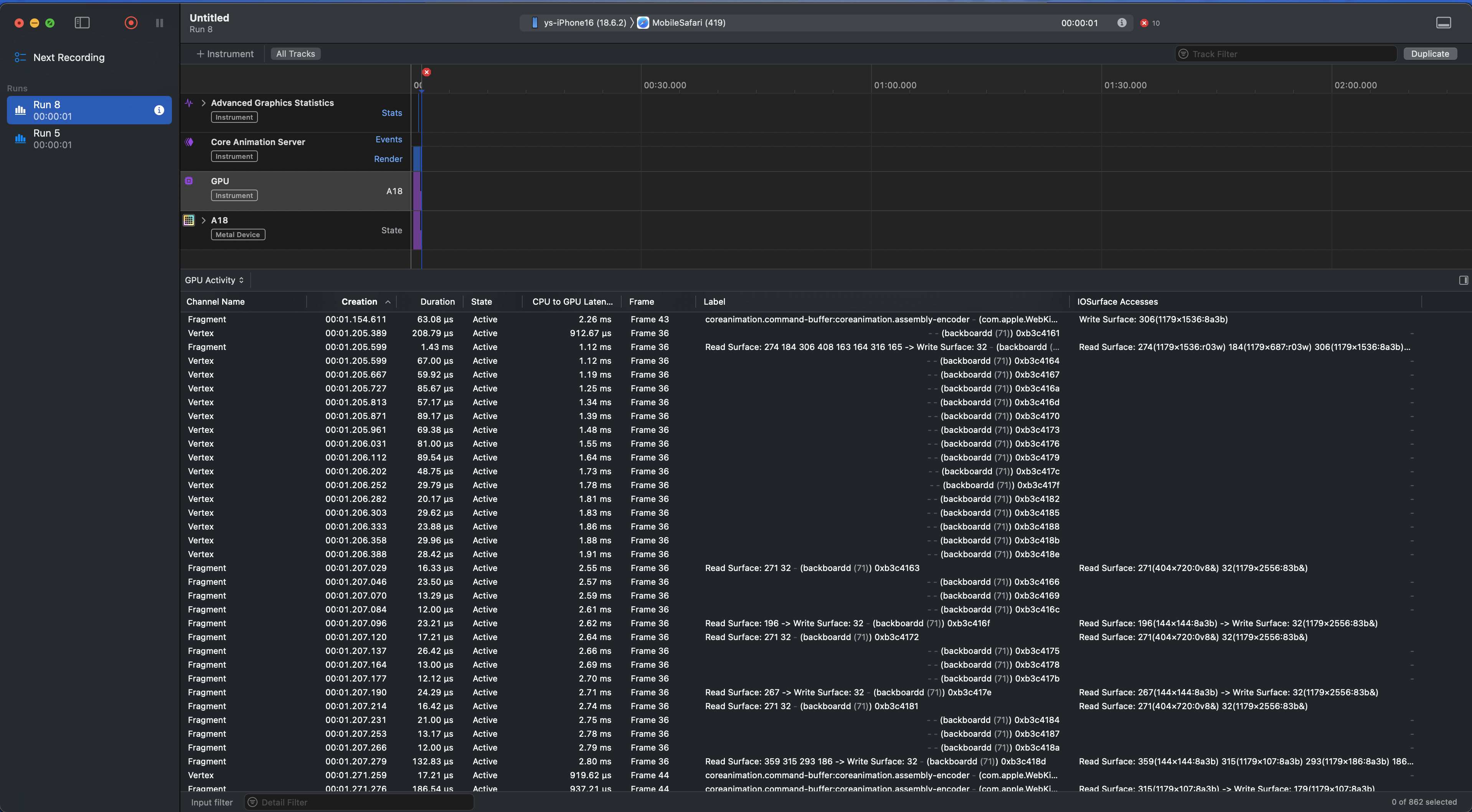
This is the Xcode instruments screen. Doesn’t it look scary even at a glance? It does to me too.
If you play a video and check the GPU log, you can roughly estimate whether hardware overlay is happening. Looking at the GPU log…
Channel Name	Creation	Duration	State	CPU to GPU Latency	Frame	Label	IOSurface Accesses
Vertex	00:01.136.396	675.88 µs	Active	737.71 µs	Frame 42	coreanimation.command-buffer:coreanimation.assembly-encoder  (com.apple.WebKit.GPU (441)) 0xb3c4145
Fragment	00:01.136.396	668.25 µs	Active	387.96 µs	Frame 34	Read Surface: 184 408 163 192 165 315 186 -> Write Surface: 32  (backboardd (71)) 0xb3c414d	Read Surface: 184(1179×687:r03w) 408(1179×1536:8a3b) 163(1179×720:8a3b) 192(849×320:8a3b) 165(264×798:8a3b) 315(1179×107:8a3b) 186(1179×168:r03w) -> Write Surface: 32(1179×2556:83b&)
Fragment	00:01.137.072	75.38 µs	Active	1.41 ms	Frame 42	coreanimation.command-buffer:coreanimation.assembly-encoder  (com.apple.WebKit.GPU (441)) 0xb3c4144	Write Surface: 319(1179×1536:8a3b)
Vertex	00:01.137.072	39.12 µs	Active	1.41 ms	Frame 42	coreanimation.command-buffer:coreanimation.assembly-encoder  (com.apple.WebKit.GPU (441)) 0xb3c4148
Vertex	00:01.137.112	27.79 µs	Active	1.45 ms	Frame 42	coreanimation.command-buffer:coreanimation.assembly-encoder  (com.apple.WebKit.GPU (441)) 0xb3c414b
Fragment	00:01.137.147	33.83 µs	Active	1.49 ms	Frame 42	coreanimation.command-buffer:coreanimation.assembly-encoder  (com.apple.WebKit.GPU (441)) 0xb3c4147
Fragment	00:01.137.182	60.67 µs	Active	1.52 ms	Frame 42	coreanimation.command-buffer:coreanimation.assembly-encoder  (com.apple.WebKit.GPU (441)) 0xb3c414a	Write Surface: 319(1179×1536:8a3b)
Vertex	00:01.152.957	16.96 µs	Active	458.42 µs	Frame 35	  (backboardd (71)) 0xb3c415c
Fragment	00:01.152.974	168.54 µs	Active	475.75 µs	Frame 35	Read Surface: 184 408 163 316 315 -> Write Surface: 33  (backboardd (71)) 0xb3c415b	Read Surface: 184(1179×687:r03w) 408(1179×1536:8a3b) 163(1179×720:8a3b) 316(849×320:8a3b) 315(1179×107:8a3b) -> Write Surface: 33(1179×2556:83b&)
It’s full of indecipherable characters, like the above. But if you stare at it intently, as if meditating facing a wall, patterns start to emerge. Here’s a summary of my findings (I couldn’t find any related official documentation).
When hardware overlay fails
Frame N:
   Read Surface: (video frame 1179×720)
   Read Surface: (UI button 200×50)
   Read Surface: (text bar 1179×107)
                ↓
   Write Surface: (final screen 1179×2556)
When hardware overlay succeeds
Frame N:
   Read Surface: (UI button 200×50)
   Read Surface: (text bar 1179×107)
                ↓
   Write Surface: (final screen 1179×2556)
So, when the video frame size (a value like 1179×720) appears consecutively in the READ log, it’s an overlay failure.
- A video-sized Read Surface is visible in the log → GPU compositing (no overlay)
- A video-sized Read Surface is not visible → hardware overlay is happening (direct output)
When hardware overlay is going smoothly,
- the GPU composites only the UI,
- the video is placed directly onto the final screen by the display engine (HWC) rather than the GPU,
- so the video frame’s Read Surface doesn’t appear in the log.
That’s how it works.
Looking at the logs this way makes the precautions for hardware overlay mentioned earlier even clearer. The moment any UI overlaps on top of the video, “hardware overlay (direct compositing)” in iOS Safari/WKWebView effectively breaks.
So what should an app like the 11st short-form player do? This is a deep and profound topic that can’t be covered briefly in this post. I’ll just say this much: you should change the optimization goal from “maintaining hardware overlay” to “keeping the GPU compositing path as light as possible.”
So far we’ve looked at this from the iOS perspective, but is the Android webview different? VideoNG and all that… it’s a bit less strict than iOS in checking whether overlay can be applied, so the situation is better, but it’s not greatly different. If you manipulate transform or opacity on top of the video with CSS, or cover the video with a UI element, hardware overlay usually fails.
So, with a webview alone, is it absolutely impossible to display UI on top of video while inducing hardware overlay? As an exception, if you cover the UI with a fully opaque rectangular element, there’s some chance of success. But this may not work as intended. So you just have to cross your fingers.
With this, the reasons not to implement a TikTok UX with a webview alone have grown by one.
References
Chromium video NG: https://developer.chrome.com/docs/chromium/videong
EOD
20250906

Leave a comment