
Building a Survey Service with SurveyJS in Vue.js
I built a survey service. I built it as an SPA using Vue.js and SurveyJS. You can find the source code here.
1. Vue Setup
First, start the project with vue-cli. The version of vue-cli I used is 2.3.0.
# Start the project with vue cli
vue create vue-survey-template
I just applied vue-router, babel, and eslint.
2. SurveyJS
Install SurveyJS.
npm install --save survey-vue
3. Creating Survey Questions
Create the survey questions with Survey Builder. After quickly putting them together in the Survey Designer, just copy and save the value from the JSON Editor. Here’s what I made.
// src/assets/survey.json
{
    "title": "make survey with Vue.js and SurveyJS!",
    "pages": [
        {
        "name": "page1",
        "elements": [
                {
                "type": "radiogroup",
                "name": "question1",
                "choices": [
                            "item1",
                            "item2",
                            "item3"
                            ]
                }
            ]
        }
    ]
}
3. Adding SurveyJS
Modify the HelloWorld component as follows.
// src/components/HelloWorld.vue
<template>
  <div class="hello">
    <div id='surveyElement'>
      <survey :survey="surveyModel"/> <!-- pass surveyModel into the surveyJS component -->
    </div>
  </div>
</template>

<script>
import * as SurveyVue from 'survey-vue' // import surveyJS
import surveyJSON from '@/assets/survey.json' // load the survey question JSON

let Survey = SurveyVue.Survey // extract just the Survey component from surveyJS

export default {
  name: 'HelloWorld',
  components: {
    Survey // use the SurveyJS component
  },
  computed: {
    // you could put surveyModel in data,
    // but since I often change the survey questions based on vuex values,
    // I defined surveyModel in computed
    surveyModel () {
      let survyeModel = new SurveyVue.Model(surveyJSON) // pass the survey question JSON in as the model
      survyeModel.onComplete.add(function (result) { // add a callback function to run when the Complete button is pressed
        alert(`result: ${JSON.stringify(result.data)}`)
      })
      return survyeModel
    }
  }
}
</script>

<!-- Add "scoped" attribute to limit CSS to this component only -->
<style scoped>

</style>
4. Wrapping Up
When you press the Complete button, the screen below appears.
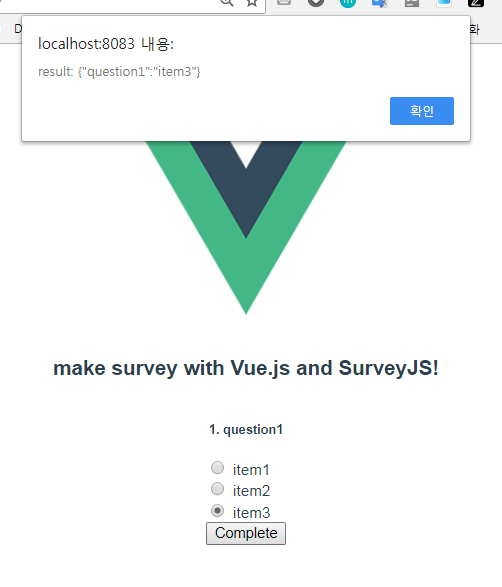
Done!
Leave a comment